How to Activate an eSIM in Egypt in Less Than 2 Minutes (2025 Guide)
I. Activate eSIM Egypt in Under 2 Minutes
Travel days are chaotic — immigration queues, luggage, airport taxi negotiations.
The last thing anyone wants is to hunt for a SIM kiosk or deal with paperwork at the counter.
If your eSIM is already installed (profile added before boarding), activation in Egypt takes less than 2 minutes.
2-Minute Activation (Quick Start Checklist)
| Step | What to do | Where it happens |
| 1. Turn on your phone | After landing in Egypt | Cairo / Luxor / Hurghada Airport / hotel |
| 2. Go to Settings → Mobile Data / Cellular → Turn ON eSIM Line | iPhone / Samsung / Pixel | Cairo / Luxor / Hurghada Airport / hotel |
| 3. Enable Data Roaming | Roaming must be ON for eSIM to activate | Cairo / Luxor / Hurghada Airport / hotel |
| 4. Choose network manually (if needed) | Orange Egypt / Vodafone Egypt / Etisalat Egypt | Cairo / Luxor / Hurghada Airport / hotel |
| 5. Wait 10–30 seconds | Signal will appear + data starts working | Cairo / Luxor / Hurghada Airport / hotel |
That’s it — no kiosk, no passport copy, no queue.
Time required: 45–90 seconds.
Tip: install the eSIM profile at home using Wi-Fi; activate only when you land.
Example (iPhone)
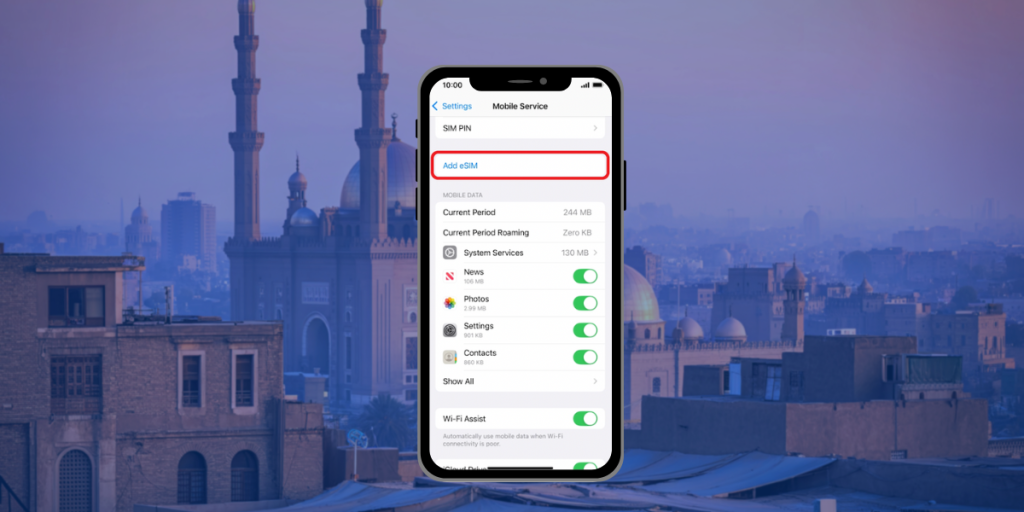
- Settings → Cellular
- Tap Your eSIM → Turn On This Line
- Enable Data Roaming
- If no signal after 30s → Network Selection → choose Orange or Vodafone
Example (Samsung / Pixel)
- Settings → Connections / Network & Internet
- SIM Manager / eSIM → Turn on eSIM line
- Enable Data Roaming
- Wait for network registration
If the eSIM was installed before your flight, activation is automatic when your phone connects to the local network.
Want to skip airport SIM queues and be online the moment the plane lands?
👉 Check available plans for Egypt eSIM for travelers
II. Why Pre-Installing Your eSIM Before the Flight Saves Time
Most travelers assume eSIM activation happens at the airport.
In reality, the smartest method is installing the eSIM before you fly (at home, with stable Wi-Fi), and simply activating it once you land.
Here’s why this approach works better:
1. Airports in Egypt are busy — eSIM lets you skip queues
At Cairo and Hurghada airports, SIM counters can get crowded during peak flight waves.
An eSIM that is already installed on your phone lets you:
- Walk straight to immigration or baggage claim
- Avoid negotiating plans or showing passport/ID
- Skip staff upselling you more expensive packages
With pre-installation, your phone connects the moment it detects a local network.
2. Airport Wi-Fi can be unstable
To install an eSIM profile, you need Wi-Fi.
Airport Wi-Fi in Egypt can be:
- Limited
- Slow
- Time-restricted (OTP via SMS, which you cannot receive yet)
Installing your eSIM at home avoids that dependency altogether.
3. Activation is automatic once you land
When the eSIM profile is already on the device, activation becomes:
- Turn on the phone
- Enable Data Roaming
- The network registers automatically (Orange / Vodafone / Etisalat)
No scanning QR code at the airport. No configuration. No stress.
4. Keep your primary SIM for calls/SMS (Dual SIM benefit)
With eSIM installed in advance, you can still use your physical SIM for:
- Receiving bank OTPs
- Flight verification codes
- Messaging apps tied to your number
Your travel data runs on the eSIM; your home SIM stays active.
5. Faster + safer = better travel start
Pre-installing ensures:
- No mistakes during installation
- No missing QR code or expired download window
- No device compatibility surprises at the airport
Install at home → activate on arrival → online in seconds.
III. Step-by-Step Activation (iPhone / Samsung / Pixel)
Once your plane lands in Cairo, Luxor, Sharm El-Sheikh, or Hurghada, activation only takes a few taps.
This guide applies to any travel eSIM, as long as the profile was installed before departure.
iPhone (most common for travelers)
- Go to Settings
- Tap Cellular / Mobile Data
- Select the eSIM → Turn On This Line
- Turn ON Data Roaming
- If it doesn’t connect automatically:
- Go to Network Selection
- Turn OFF Auto
- Select Orange Egypt or Vodafone Egypt
iPhone will register the eSIM on the selected local network within seconds.
Optional but recommended:
- In Cellular Data, choose your eSIM as Primary for mobile data
- Keep your physical SIM active for SMS/OTP if needed
Samsung Galaxy / Android (One UI)
- Settings → Connections
- SIM Manager
- Toggle eSIM ON
- Tap Mobile Data and select the eSIM as the data SIM
- Turn ON Data Roaming
- If needed → Mobile Networks → Network Operators → Orange/Vodafone
Tip: Some Android models show “eSIM downloaded but inactive.”
Just tap Activate, then wait for network registration.
Google Pixel
- Settings → Network & Internet
- Tap eSIMs
- Tap the installed eSIM → Turn on
- Enable Roaming
- Choose Orange manually if the network doesn’t appear
Pixels are very fast at registering roaming networks — typically < 30 seconds.
APN Settings (only if data doesn’t start)
Most eSIMs set this automatically, but if you need to enter it manually:
| Carrier | APN |
| Vodafone Egypt | internet.vodafone.com.eg |
| Orange Egypt | internet or web.orange.eg |
| Etisalat Egypt (e&) | etisalat |
How to check:
- iPhone: Settings → Cellular → eSIM → Cellular Data Network
- Android: Settings → Connections → Mobile Networks → Access Point Names
Common mistakes to avoid
| Issue | Fix |
| No signal after landing | Turn ON Data Roaming → Restart phone → Select Orange/Vodafone manually |
| “No Service” on eSIM | Ensure phone is unlocked (SIM-free) |
| Installed but no data | Enter APN manually (table above) |
| Slow speed | Switch to another network (Orange often stronger in tourist areas) |
What happens if activation fails?
Worst case, do this:
Airplane mode ON → wait 10 seconds → OFF again.
This forces the device to re-register the network.
At this point, your eSIM should be active.
You now have:
- Mobile data
- Maps & ride apps ready (Uber / Careem)
- The ability to message friends or connect to your hotel app
IV. Local SIM vs. Online eSIM: Which Is Faster to Activate in Egypt?

When you land in Egypt, you’ll see kiosks from Vodafone, Orange, and Etisalat at the airport.
They sell physical SIM cards, but the real question is:
Which option gets you online faster — Airport SIM or Pre-installed eSIM?
Quick Comparison Table
| Feature / Priority | Pre-Installed eSIM (online purchase) | Airport SIM (physical SIM) |
| Activation time | < 2 minutes (turn on → data works) | 20–45 minutes (queue + paperwork) |
| Where activation starts | On the plane / at the gate / baggage claim | Only at the kiosk |
| ID/Passport needed | ❌ No | ✅ Yes (required for registration) |
| Line management | Skip all queues | Stand in line (peak flights can be crowded) |
| Convenience | Hands-free, done before the trip | Hassle if arriving late night or tired |
| SIM swapping | No physical SIM handling | Must remove physical SIM to insert new one |
| Dual SIM support | ✅ Keep your original SIM active (bank OTPs, SMS) | ❌ One SIM at a time |
| Best for | Travelers who want to be online instantly | Travelers focused only on cost |
When a local airport SIM is worth it
Choose airport SIM if:
- You’re staying 30+ days
- You don’t care about queueing
- You mostly need large data volume at the lowest possible cost
⚡ When an eSIM is the smarter move
Choose eSIM if you want:
- Internet as soon as the aircraft lands
- To avoid paperwork and sales pitches
- Dual SIM (data on eSIM, SMS on your home SIM)
- To activate it in under 2 minutes
Pre-install at home → activate when you land → start exploring
If you prefer the “land-and-go-online” experience,
👉 Check plans here: Egypt eSIM for travelers
V. Troubleshooting: What to Do If Your eSIM Doesn’t Connect in Egypt
Even when the eSIM is installed correctly, network conditions in Egypt can be unpredictable — especially in desert regions or resort towns like Hurghada and Sharm El-Sheikh.
Below are fast fixes that solve 95% of activation issues in less than a minute.
Quick Fix #1 — Toggle Airplane Mode (forces network registration)
- Turn Airplane Mode ON
- Wait 10 seconds
- Turn Airplane Mode OFF
In most cases, your eSIM will lock onto Orange or Vodafone immediately.
Quick Fix #2 — Turn ON Data Roaming
This is the most common reason the eSIM doesn’t activate.
- Go to Settings → Cellular / Mobile Data
- Turn Data Roaming = ON
Without roaming, the eSIM cannot handshake with local networks.
Quick Fix #3 — Switch network manually
Egypt has multiple networks and not all have equal coverage everywhere.
- Settings → Network Selection
- Disable Automatic
- Try networks in this order:
| Priority | Network | Why |
| ✅ 1 | Orange Egypt | Strongest coverage in tourist regions & honeymoon destinations |
| ✅ 2 | Vodafone Egypt | Good in Cairo, Giza, Alexandria |
| ⚠️ 3 | Etisalat (e& Egypt) | Works, but can be slower at peak times |
If the first network is weak, switching manually usually solves it.
Quick Fix #4 — Check APN settings (only needed if data doesn’t start)
Sometimes the APN is not automatically applied.
Enter one of these:
| Carrier | APN to enter |
| Orange Egypt | internet or web.orange.eg |
| Vodafone Egypt | internet.vodafone.com.eg |
| Etisalat Egypt (e&) | etisalat |
Where to enter APN:
- iPhone → Settings → Mobile Data → eSIM → Cellular Data Network
- Android → Settings → Mobile Networks → Access Point Names
Quick Fix #5 — Make sure your phone is unlocked
If your phone is carrier-locked, the eSIM cannot register on foreign networks.
How to check:
- iPhone → Settings → General → About → Carrier Lock = No SIM restrictions
- Android → Try inserting any other carrier SIM (if it fails → phone locked)
Quick Fix #6 — Restart the device
Sometimes simple is best:
Power OFF → wait 10 seconds → Power ON
✅ If nothing works (rare cases)
Contact your eSIM provider’s support and send:
- ICCID (eSIM number)
- Screenshot of “No Service”
- Location (ex: Hurghada Marina or Cairo Airport T3)
Most providers can refresh network registration remotely.
VI. FAQ About Activating an eSIM in Egypt
1. Can I activate my eSIM in Egypt before arriving?
Yes. You can install the eSIM before flying (requires Wi-Fi), then activate it only when you land. Activation happens automatically when your phone detects a network.
2. Do I need Wi-Fi to activate the eSIM?
You need Wi-Fi only to download/install the eSIM profile.
Activation itself does not require Wi-Fi — it connects through mobile data.
3. Which networks support eSIM in Egypt?
Most travel eSIMs connect to one of these networks:
- Orange Egypt
- Vodafone Egypt
- Etisalat (e& Egypt)
If auto-connect fails → manually select Orange or Vodafone.
4. My eSIM shows “No Service” after landing — what should I do?
Try these (in order):
- Turn ON Data Roaming
- Airplane mode ON → OFF
- Select network manually (Orange → Vodafone → Etisalat)
5. Can I still use WhatsApp with an eSIM?
Yes. WhatsApp stays linked to your original number even if data is on the eSIM.
6. What if I need to receive SMS/OTP from my home country?
Keep your physical SIM active. Use eSIM for data; physical SIM for calls/SMS.
(Dual SIM convenience — one of the main benefits of using eSIM.)
Final Tip
If you want to:
- avoid airport queues,
- activate your eSIM in less than 2 minutes, and
- stay connected from the moment your plane touches down…
Then pre-install your eSIM before the flight and activate it when you land.
You’ll walk past the SIM kiosks while everyone else waits in line.
👉 Plans here: Egypt eSIM for travelers